
Appearance
Permissions & Safety
Starfish AI can take real actions -- delete files, modify accounts, send messages. The permission system ensures you stay in control. Every potentially impactful operation requires your explicit approval before it executes.
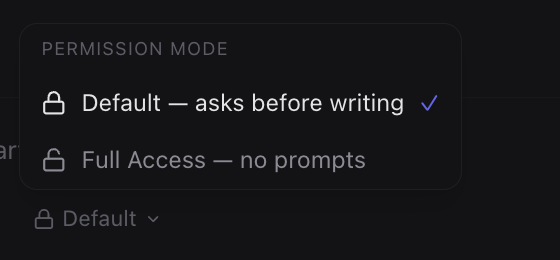
Permission Modes
Starfish has three approval modes, chosen with the approval selector in the Developer-mode composer toolbar. Chat mode always runs in Approve for me with a quiet, per-action safety check, so it has no selector.
Ask for approval (Recommended)
Every tool call that can create or modify data shows a permission prompt before executing. Destructive operations get a stronger, red confirmation. This is the safest option and is the default.
Approve for me
Reads and lookups run freely. Each operation that creates or modifies data is sent to a fast pre-execution safety reviewer, which answers allow, ask, or deny. In Developer mode, a delete you asked for shows a card. Other deletes, and steps the reviewer does not allow, do not stop the work: they are listed once at the end of the reply under Needs your go-ahead. Reply go to run them, no to skip them, or say which ones. A few steps Starfish never runs, even with your approval; it tells you so.
Only deletes, including emptying a file, count as destructive. Replacing a file counts as an edit, so Starfish stops less often for safe steps. When a step is blocked, Starfish does not keep trying the same step.
Full access
Like Approve for me, with a more lenient reviewer that stops only clearly dangerous steps. Deletes still wait for you, and path guards and OS limits still apply.
WARNING
Full access lets the AI take actions without asking. Only enable it when you trust the current task and want maximum speed. You can switch back at any time.
Local Access set to Full Access (Developer mode)
With Approve for me or Full access, and Settings → Local Access set to Full Access, Starfish does not ask again for what you already asked for. The steps you asked for run without a card, also outside the project folder.
- Only deletes and a few risky steps wait. They are listed once at the end of the reply under Needs your go-ahead. Reply go to run them, no to skip them, or say which ones.
- A step the reviewer refuses is not run. Ask for it again in a new message if you want it.
- Ask for approval and a scoped Local Access work as before.
No folder chosen (Developer mode)
A Developer mode chat works without a project folder. Starfish works on the files and folders you name, wherever they are, with the same tools and approvals as in a project folder. Name them by path, or with words such as Downloads, Desktop or Documents. It does not ask you to choose a project folder first.
Permission Levels
Red (Danger)
Destructive or irreversible operations. These include:
- Deleting files, records, or resources
- Emptying existing files
- Sending messages on your behalf (email, chat)
- Modifying critical account settings
The prompt uses a red "Destructive Action — Cannot Be Undone" banner and has no "Always allow" option.
Amber (Caution)
Operations that create or change existing work. These include:
- Creating new files or records
- Editing data in a connected service
- Sending an email or message
The prompt uses an amber indicator for these operations.
What a Permission Prompt Shows
Each prompt displays:
- What it wants to do -- a plain-English description (e.g., "Save file", "Running command", "Calendar events list").
- Technical Details -- an expandable "Show details" section showing the exact command, file path, or API call. Hidden by default to keep the UI clean for non-technical users.
- Account affected -- which connected account the action touches.
- Can it be undone? -- whether the change is reversible.
- Information used -- what the action is based on.
- For sending tools, a preview of the actual message (recipient, subject, and body) so you review what goes out.
Accepting or Rejecting
- Allow -- the operation executes and the AI continues.
- Always allow -- grants this exact call (targets, count, recipients) for future turns. Available in Developer mode.
- Don't allow -- the operation is blocked. The AI is notified and adjusts its approach. In Developer mode you can add an optional reason the AI will see.
If a permission prompt is missed (e.g., during navigation), Starfish shows it again. Sessions with pending permission prompts show an "Needs input" indicator in the sidebar.
Path Guards
Credential and system locations are always blocked, whatever your permissions or mode. Starfish's own data is blocked too. Credential and environment files are refused unless you turn on Allow reading credential and environment files in Settings → Local Access.
These requests are refused before they run, without a permission prompt.
Read-Only Tools
Tools that cannot modify anything run without permission prompts in every mode, whatever your Local Access setting. Starfish can read your files even when Local Access is off; writing files and running commands still follow your settings.
- LS -- listing files
- Read -- reading file contents
- Glob -- searching file names
- Grep -- searching file contents
- WebSearch / WebFetch -- looking things up online
- Document, meeting, artifact, and timeline reads
These are safe by design and execute immediately.