
Appearance
Prompt Builder
The Prompt Builder helps you write structured, effective prompts for complex tasks. Instead of crafting everything in a single message, you define requirements and constraints separately -- the builder generates an optimized prompt.
Opening the Prompt Builder
In Developer mode, type /builder in the composer (or open the command menu with / and choose Open the prompt builder). The builder appears inline above the message box.
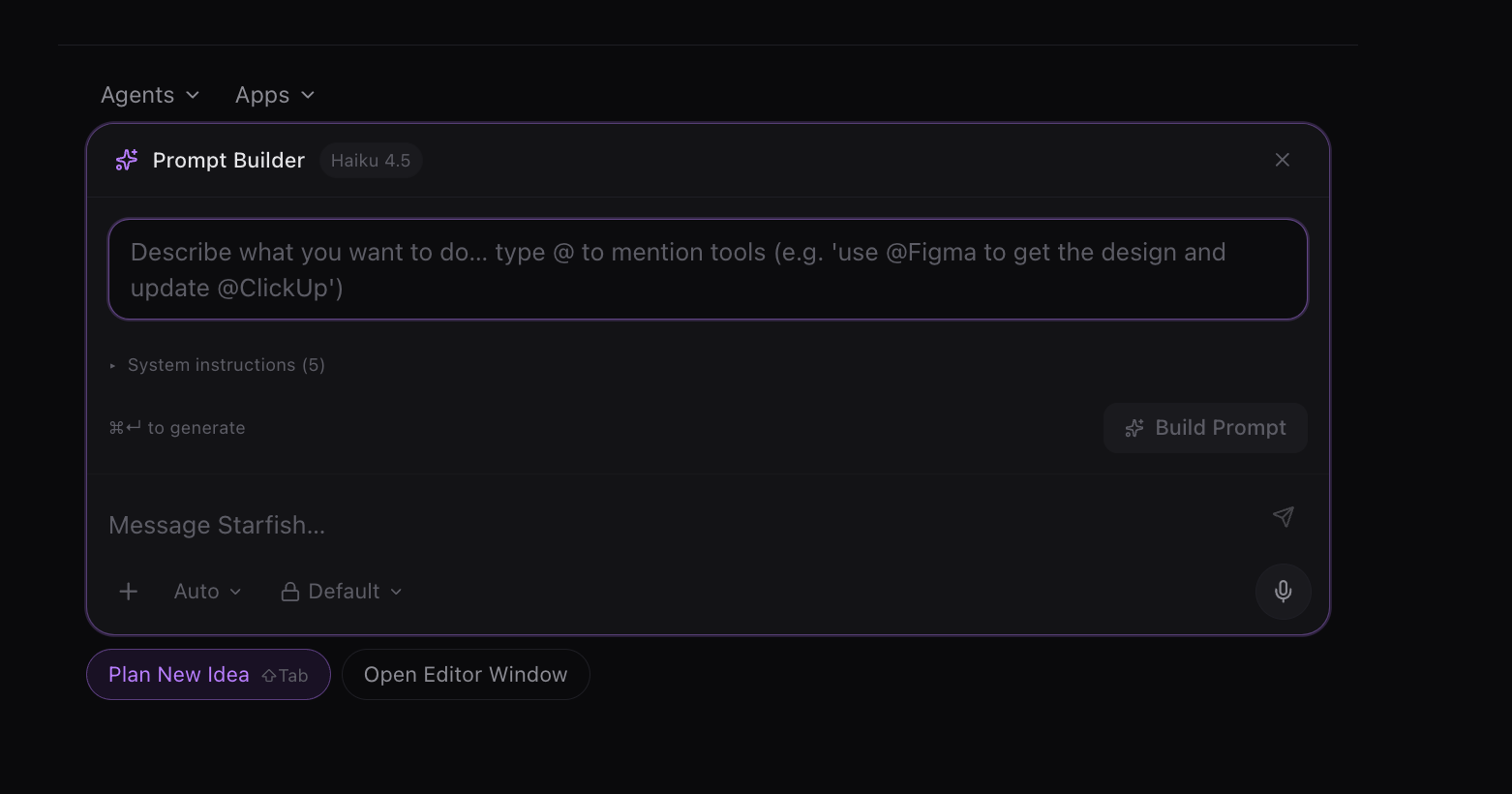
How It Works
The builder has three sections:
Requirements
A text area where you describe what you want. Be specific about the output you expect. Type @ to mention tools or apps inline -- selecting one adds it to the prompt and activates it for the chat.
Do / Don't Instructions
Constraint sets that shape the AI's behavior, under an expandable System instructions section:
- Do's -- things the AI should include or follow. Examples: "Include your target audience and brand voice", "Specify the desired output format (email, social post, report)".
- Don'ts -- things to avoid. Examples: "Ask for multiple unrelated things at once", "Be vague about what success looks like".
The builder ships with sensible defaults. Add, edit, or remove instructions as needed; your changes persist across sessions, and Reset to defaults restores the originals.
@Tool Mentions
Reference specific apps directly in your requirements. When you generate the prompt, any app mentioned this way is activated for the chat as well.
Generating the Prompt
Click Build Prompt (or press Cmd + Enter) and the builder produces an optimized prompt from your requirements and constraints. The generated prompt is inserted into the composer, ready to send or edit further.
Tips for Good Prompts
- One task per prompt. Break complex workflows into sequential messages.
- Name the output format. "Write a CSV with columns: name, email, status" beats "give me the data."
- Set boundaries. The Don'ts are powerful -- use them to prevent common failure modes.
- Reference context. Use @mentions to point the AI at specific apps it should use.