
Appearance
Embedded Browser
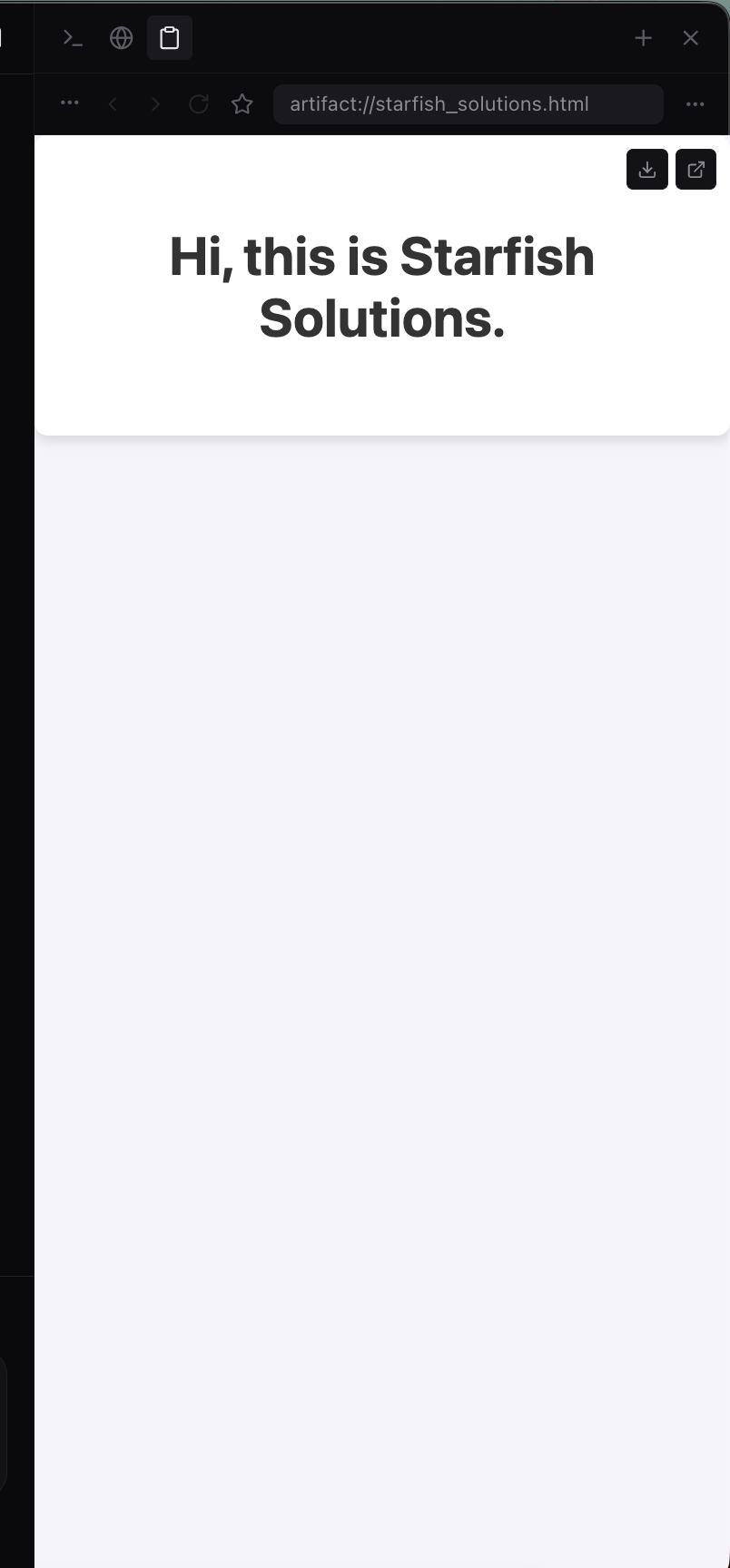
Starfish includes a built-in web browser directly in the workspace. Browse the web, preview AI-generated HTML, inspect page elements, and let the AI interact with pages on your behalf.
Features
- Multi-tab browsing with URL bar, back/forward, and refresh
- AI-generated HTML preview -- artifacts render instantly in the browser
- Element selector -- point-and-click tool to capture any element's details
- Link dialog -- open links from AI responses directly in the browser
- Agent control -- when Browser Use is enabled, the AI can drive the embedded browser on your behalf
- Localhost support -- test your running local dev server without leaving Starfish
Navigation
The browser has a full URL bar. Type a URL and press Enter to navigate. The browser handles URLs intelligently:
- Full URLs load directly (e.g.,
https://example.com) - Localhost URLs are detected automatically (e.g.,
localhost:3000) - Plain text falls back to a Google search
Each tab maintains its own history stack. Use the back and forward buttons to navigate within a tab.
Multi-Tab Browsing
Click the + button in the browser tab bar to open a new tab. Each tab has its own URL, history, and page title. Close tabs by clicking the X on the tab.
Opening Links from Chat
When the AI includes a link in its response, clicking it opens a dialog with two options:
- Open in Default Browser -- opens the link in your system browser (Safari, Chrome, etc.)
- Open in App -- opens the link in the embedded browser panel, creating a new tab
Element Selector
The element selector is a visual point-and-click tool that captures details about any element on the current page and inserts them into the chat.
How to use it
- Click the element selector button in the browser toolbar (available on both the Browser tab and the Artifacts tab).
- The page gets a crosshair overlay. Hover over elements to see them highlighted.
- Click an element to capture it. In comment mode you can also leave a short note pinned to the element.
- The captured element's tag, id, CSS classes, CSS selector path (up to 5 levels deep), and outer HTML are inserted into the chat as a chip you can send with your next message.
- Press Escape to cancel without selecting.
When to use it
- Debugging UI -- "This button looks wrong" + select the button so the AI sees the exact element.
- Refining generated HTML -- select a specific element in an artifact preview and ask the AI to change it.
- Describing layout issues -- instead of describing a problem in words, select the element directly.
AI Browser Control
When Browser Use is enabled in Settings, the agent can drive the embedded browser to research, read, and fill in pages — using whatever you're already signed into, because it operates the browser panel rather than a separate automated browser. It never handles your credentials.
| Action | Description |
|---|---|
| Navigate | Open a URL in the browser panel |
| List tabs | See which tabs are open and which one is active |
| Switch tab | Move to another open tab before reading or acting on it |
| Close tab | Close a tab you asked it to close |
| Read | Take a numbered snapshot of the page's interactive elements and text |
| Wait | Wait for the page to settle, or for a condition |
| Click | Click an element from the most recent snapshot |
| Type | Enter text into an input from the most recent snapshot |
| Scroll | Scroll the page |
| Press a key | Send a keyboard key to the page |
| Screenshot | Capture the current page state |
Read-only actions (navigate, list or switch tabs, read, wait, scroll, screenshot) run without a prompt. Clicking and typing follow the app's permission mode, and any click whose visible label reads as publishing, sending, paying, or deleting is escalated so it needs your explicit approval. Page content is always treated as untrusted data — the agent ignores any instructions it finds on a page.
The agent opens public links, such as a Google Form it found in a search, without an extra check. Before it opens an address that would carry your private information to a site you did not ask for, a safety check reviews it first.
HTML Artifact Preview
When the AI generates HTML, CSS, or JavaScript artifacts during a conversation, they automatically render in the Artifacts tab of the browser panel. This creates a tight feedback loop:
- Ask the AI to build a page or component
- See it rendered in real time
- Use the element selector to point at specific parts
- Request changes and see updates immediately
Use Cases
- Research: Look up documentation, reference material, or competitor sites without leaving Starfish
- Preview generated code: See AI-built HTML/CSS/JS rendered live
- Test web apps: Navigate to localhost and test your running application
- Form automation: Let the AI fill out repetitive forms
- Element inspection: Select specific UI elements to discuss with the AI
- Competitive analysis: Browse and extract information from websites